Activate SBI Net Banking Online : Learn how to activate SBI Net Banking through OnlineSBI and YONO with a complete step-by-step process, login setup, documents required, security tips, FAQs and troubleshooting guide.
SBI Net Banking is one of India’s most widely used digital banking services, giving customers access to fund transfers, account management, UPI settings, card control, bill payments, and much more — all from the comfort of their home. Whether you use the OnlineSBI portal or the YONO SBI app, activating SBI Net Banking is simple, fast, and fully online.
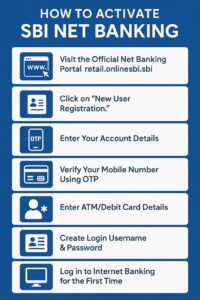
In this detailed guide, you will learn how to activate SBI Net Banking step-by-step using your registered mobile number, ATM/Debit Card, and basic account details. We have included an easy activation method, important links, prerequisites, troubleshooting help, and 20+ frequently asked questions that most SBI customers ask.
This article is designed for all SBI customers, whether you are opening a net banking account for the first time or shifting from offline banking to digital banking. Follow the steps below to enable secure, 24×7 banking on your smartphone or computer.
Quick Overview – SBI Net Banking Activation
| Service | Details |
|---|---|
| Bank | State Bank of India (SBI) |
| Platform | OnlineSBI / YONO SBI |
| Activation Time | 5 – 10 Minutes |
| Requirements | Registered Mobile Number, ATM Card, Account Number |
| Eligibility | Saving/Current Account Holders with Active Mobile Number |
Important SBI Net Banking Links
| Service | Official Link |
|---|---|
| SBI Net Banking Login | https://retail.onlinesbi.sbi |
| New User Registration | SBI New Registration |
| YONO SBI App | Google Play / App Store |
| Branch Locator | SBI Branch Locator |
Eligibility & Requirements for SBI Net Banking
You must have the following to activate SBI Net Banking:
- Active Saving or Current Account with SBI
- Registered Mobile Number linked to your account
- ATM/Debit Card (mandatory for online activation)
- Full KYC Completed (Aadhaar/PAN)
- Good Internet Connection
How to Activate SBI Net Banking Online (Step-by-Step)
SBI allows customers to activate net banking completely online without visiting the branch. The process takes around 5 to 10 minutes if you have your registered mobile number and ATM/Debit Card with you.
Below is the **official and recommended** method to activate SBI Net Banking using the OnlineSBI portal.
Step 1: Visit the Official SBI Net Banking Portal
Go to: https://retail.onlinesbi.sbi
(Screenshot Placeholder: SBI Login Page Image)
Make sure the URL starts with https:// to ensure that you are on the official, secure website. Avoid using Google search to open net banking pages, as it may mislead you to phishing sites.
Step 2: Click on “New User Registration”
On the login page, you will see the option “New User Registration / Activation”.
- Click on the link
- Read the instructions
- Select “New User Registration”
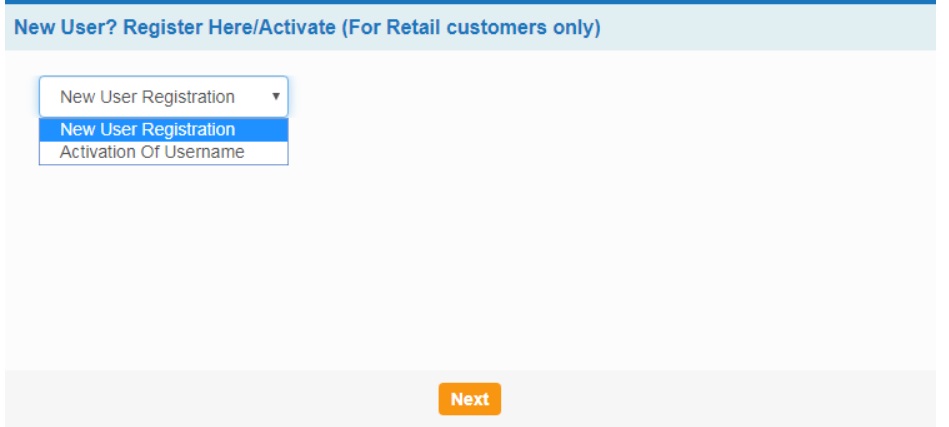
New User Registration Button
Step 3: Enter Your Account Details
You must enter the following details exactly as they appear in your passbook:
- Account Number
- CIF Number (printed in passbook)
- Branch Code (auto-detect available)
- Country
- Registered Mobile Number
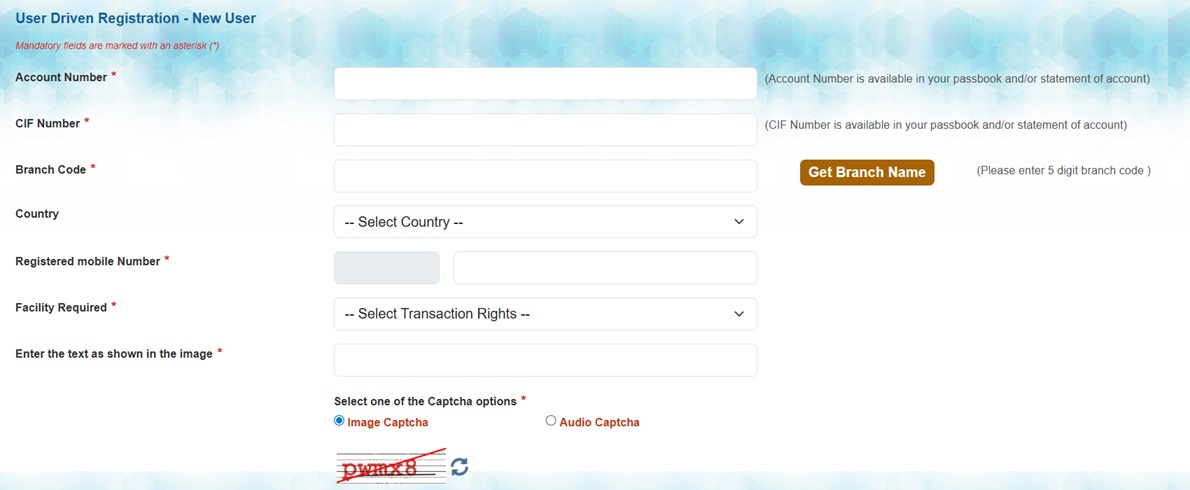
( Registration Form Image)
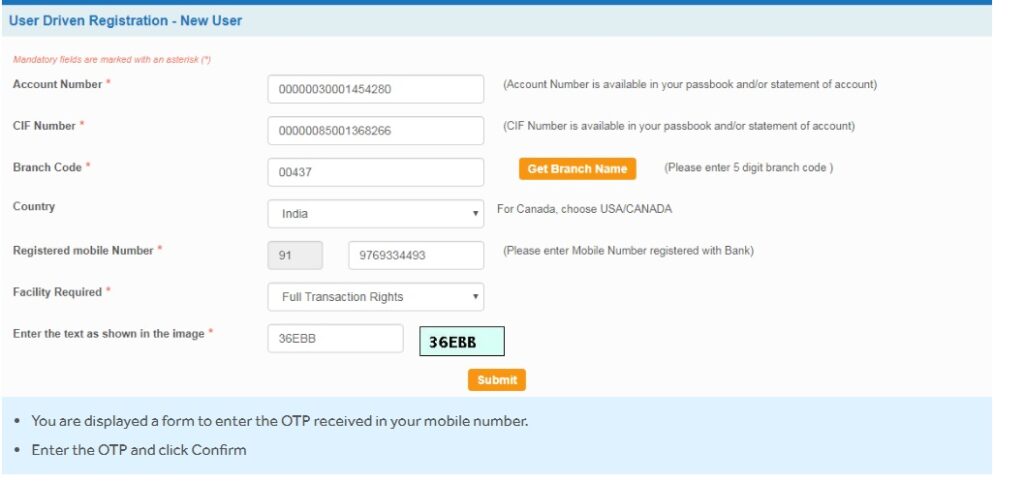
Important Note: If your mobile number is NOT registered, you cannot activate SBI net banking online.
Step 4: Verify Your Mobile Number Using OTP
SBI sends a One-Time Password (OTP) to your registered mobile number.
Enter that OTP on the website to proceed.
– Check network
– Restart your device
– Disable DND
– Try again after 2 minutes
Step 5: Enter ATM/Debit Card Details
You will now see the option to enter your ATM/Debit Card details.
SBI uses this to verify your identity online.
- Enter card number
- Enter expiry date
- Enter ATM PIN
Without ATM/Debit Card, online activation will not work.
Step 6: Create Login Username & Password
Now choose your:
- Username (Login ID)
- Password
Your username must be unique and 8–20 characters long.
Your password should be strong — include uppercase, lowercase, numbers, and symbols.
Step 7: Log in to Internet Banking for the First Time
Once registration is complete:
- Go back to OnlineSBI Login Page
- Enter your username + password
- Set your Profile Password
- Select your Security Questions
- Set a Hint Answer
(Screenshot Placeholder: SBI Dashboard Image)
Your SBI Net Banking is now successfully activated.
You can now log in anytime to manage your money securely.
How to Activate SBI Net Banking Using YONO App
If you prefer using your smartphone, SBI also allows you to activate net banking using the YONO SBI mobile app.
Step-by-step YONO Net Banking Activation
- Install the YONO SBI App (Google Play Store / Apple App Store)
- Open the app and tap on New to YONO? Register Now
- Enter your Account Number and Mobile Number
- Verify OTP
- Select “Register using ATM Card”
- Enter card details + ATM PIN
- Create your Internet Banking Username & Password
- Complete profile settings
After finishing the steps, your internet banking will be automatically activated on both YONO and OnlineSBI.
How to Activate SBI Net Banking Offline (Branch Method)
You can activate SBI Net Banking by visiting your home branch, especially if:
- Your mobile number is not registered
- You do not have an active ATM card
- Your account is very old
- You tried online activation but it failed
Follow these steps:
- Visit your SBI branch
- Request the SBI Internet Banking Registration Form
- Fill details: Name, Account Number, CIF, Mobile, Email
- Submit the form with a photocopy of your ID
- Bank will process your request in 24–48 hours
- You will receive a temporary username
- Use it to activate your net banking online
Branch activation is slower but useful if online options fail.
Features You Unlock After Activating SBI Net Banking
- Check account balance & mini statement
- Download passbook & account statements (PDF/Excel)
- IMPS, NEFT, RTGS fund transfers
- UPI management
- Open FD/RD online
- Credit card bill payment
- Apply for personal loans instantly
- Manage ATM/Debit Card settings
- Set transaction limits
- Block your card in emergencies
- Pay electricity, water, gas, DTH, and mobile bills
SBI Net Banking Activation: Troubleshooting Guide
1. OTP Not Received
Solutions:
- Check network signal
- Restart phone
- Disable DND
- Wait 2 minutes and retry
- Try from another browser
2. ATM Card Not Working
Ensure your ATM card is:
- Active and not expired
- Linked to your account
- Working in ATM for cash withdrawal
3. Username Already Taken
SBI has crores of users, so try a unique username like:
- sbiuser12345
- yourname2025
- initials + DOB combination
4. Activation Failed After OTP
- Clear browser cookies
- Use incognito mode
- Try using another browser (Chrome → Firefox)
- Try after 1 hour (server congestion)
5. Mobile Number Not Registered
Without registered mobile number, registration is impossible online.
You must visit the nearest SBI branch and submit a mobile update form.
SBI Net Banking Security – Must Follow Tips
- Never share OTP with anyone
- Do not share ATM PIN, CVV, or password
- Always type the URL manually: https://retail.onlinesbi.sbi
- Use a strong password with numbers & symbols
- Do not use cyber cafés for banking
- Logout properly after every session
- Enable transaction alerts on SMS + email
- Never click on suspicious links claiming “SBI verification”
Activate SBI Net Banking Online – 20 Important FAQs
1. Is SBI Net Banking free?
Yes. SBI does not charge any fee for activating or using internet banking. Only certain fund transfers like RTGS may have nominal charges.
2. Can I activate SBI Net Banking without a debit card?
No. Online activation requires an active SBI ATM/Debit Card. If you don’t have one, visit the branch for offline activation.
3. What should I do if I don’t receive OTP?
Check your network, disable DND, restart your phone, or try again after 5 minutes. If still not received, update your mobile number at the branch.
4. Can I activate net banking for a joint account?
Yes. Joint account holders can activate net banking, but only if the account mode is “Either or Survivor”.
5. How long does SBI Net Banking activation take?
The online process takes only 5–10 minutes.
6. What if I forget my SBI Username?
Use the “Forgot Username” option on the login page. You will receive your User ID on your registered mobile.
7. Can minors use SBI Net Banking?
SBI provides limited-access net banking for minors above 10 years, with guardian permission.
8. Is SBI Net Banking safe?
Yes, it uses two-factor authentication, OTP verification, and secure encrypted connections.
9. Can I transfer money without adding beneficiary?
Yes. You can use “Quick Transfer” for small amounts without adding a beneficiary.
10. How to change SBI Net Banking password?
Log in → Profile → Change Password → Enter old & new passwords → Save.
11. Can I increase my transaction limit?
Yes. You can increase limits from Profile → Set Transaction Limit.
12. My account gets locked. What to do?
Use “Unlock User ID” on the login page or wait 24 hours. After multiple failures, contact SBI support.
13. Which browser works best for SBI Net Banking?
Google Chrome, Firefox, and Edge work best. Avoid outdated browsers.
14. Can I use SBI Net Banking outside India?
Yes. SBI Net Banking works worldwide as long as your mobile number receives OTPs.
15. Can NRIs activate SBI Net Banking?
Yes, NRIs can activate net banking online if their mobile number is registered.
16. Why is my debit card not accepted during registration?
It may be expired, blocked, or not linked to your primary account.
17. What is the maximum SBI IMPS limit?
The IMPS limit is usually ₹2 lakhs, but may vary based on profile settings.
18. Can I download SBI bank statements?
Yes, SBI Net Banking allows PDF and Excel statement downloads.
19. Can I block my ATM card through net banking?
Yes. Go to e-Services → ATM Card Services → Block ATM Card.
20. What should I do if someone knows my password?
Change your password immediately and enable SMS alerts for security.
Conclusion
SBI Net Banking is one of the most secure and convenient banking services in India. With OnlineSBI and YONO, customers can access their accounts anytime, perform instant fund transfers, manage cards, apply for loans, and pay bills within seconds.
This guide covered everything you need — activation steps, YONO method, troubleshooting, security best practices, and FAQs. If you follow all the steps carefully, your SBI Net Banking will be fully activated in less than 10 minutes.
Read More Banking Guides
- How to Activate HDFC Net Banking Online
- How to Activate ICICI Net Banking / iMobile
- How to Activate Axis Bank Net Banking
- How to Open a Bank Account Online in India