Activate HDFC NetBanking Online: Learn how to activate HDFC NetBanking using Customer ID, OTP verification, debit card authentication, and secure password setup. Full guide with screenshots, troubleshooting tips, and FAQs.
HDFC NetBanking is one of India’s fastest and most secure digital banking platforms. With over 52 million users, HDFC Bank provides a seamless online banking experience for money transfer, statement download, card management, FD/RD creation, UPI control, and much more. If you have an HDFC Bank account, activating NetBanking is essential to enjoy 24×7 instant banking from your mobile or laptop.
In this detailed guide, you will learn how to activate HDFC NetBanking in less than 5 minutes using your Customer ID, registered mobile number, and Debit/ATM card. No branch visit is required, and the process is completely digital.
We have also included troubleshooting help, screenshots, important links, common mistakes users make, and 20 highly useful FAQs asked by HDFC customers. Follow the steps carefully to activate NetBanking on your first attempt.

Quick Overview — HDFC NetBanking Activation
| Service | Details |
|---|---|
| Platform | HDFC NetBanking |
| Activation Time | 3–5 Minutes |
| Activation Requirements | Customer ID, Registered Mobile Number, ATM Card |
| Verification Method | Mobile OTP + Debit Card Authentication |
| Access Website | https://netbanking.hdfcbank.com |
Important HDFC NetBanking Links
| Service | Official Link |
|---|---|
| HDFC NetBanking Login | NetBanking Login |
| New Registration | Register for NetBanking |
| HDFC MobileBanking App | Google Play / App Store |
| HDFC Customer Care | Need Help? |
Eligibility & Documents Required
To activate HDFC NetBanking online, you must have:
- An active Savings or Current Account with HDFC Bank
- Registered Mobile Number with SMS reception
- Your Customer ID (printed in Welcome Kit/Passbook)
- An active HDFC ATM/Debit Card
- Good internet connection
How to Activate HDFC NetBanking Online — Step-by-Step (2025)
HDFC Bank provides one of the fastest online NetBanking activation processes in India.
You only need your Customer ID, registered mobile number, and Debit/ATM card.
Below is the official, easiest, and safest method to activate HDFC NetBanking online without visiting the branch.
Step 1: Visit the Official HDFC NetBanking Page
Open: https://netbanking.hdfcbank.com
(HDFC Login Page)
Make sure the URL begins with https:// — this ensures you are on the genuine HDFC bank website and not a phishing page.
Step 2: Click on “New User / Register”
On the login page, you will see links like:
- “Register”
- “New User?”
Click on this to start the NetBanking registration process.
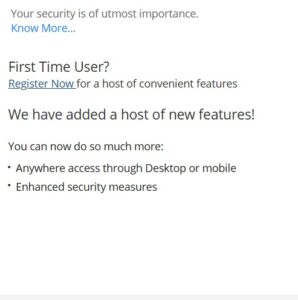
(New User Registration Button)
Step 3: Enter Your Customer ID
HDFC Bank provides a unique Customer ID to every account holder.
You can find it in your:
- Welcome Kit
- Passbook
- Cheque book
- Bank statement
Enter your Customer ID and proceed to the next step.
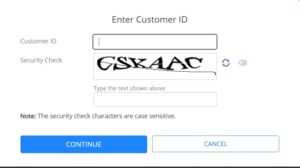
Step 4: Verify OTP Sent to Registered Mobile Number
You will receive an OTP on your registered mobile number.
Enter this OTP exactly as received to continue.
Step 5: Validate Your Debit/ATM Card
The system now asks you to authenticate using your active HDFC ATM/Debit Card.
You must enter:
- Debit Card Number
- Expiry Date
- ATM PIN
If your debit card is expired or blocked, online activation will not work.
Step 6: Create Your Login Password
You must now set a secure NetBanking password, known as IPIN.
Password must include:
- Uppercase letter
- Lowercase letter
- Number
- Special character
- Minimum 8 characters
After setting the password, click Submit.
Step 7: Log in for the First Time
Now return to the main login page:
https://netbanking.hdfcbank.com
Enter your Customer ID and newly created password.
On first login, you may be asked to:
- Set security questions
- Set a personalized picture (optional)
- Confirm contact details
Your HDFC NetBanking is now fully activated.
How to Activate HDFC NetBanking via Mobile App
You can also activate HDFC NetBanking using the HDFC MobileBanking app.
Step-by-Step Process
- Install the HDFC MobileBanking app from Play Store/App Store
- Open the app → Choose “Register”
- Enter your Customer ID & registered mobile number
- Verify OTP
- Select “Set NetBanking Password” option
- Verify ATM/Debit Card details
- Create password and confirm
Your NetBanking and Mobile Banking get activated together using this method.
How to Activate HDFC NetBanking Offline (Branch Method)
If you cannot activate HDFC NetBanking online due to:
- Mobile number not registered
- Debit card not active
- Technical error
- Very old account
Follow this branch-based method:
- Visit the nearest HDFC Bank branch
- Ask for the NetBanking Registration Form
- Fill details: Account No., Customer ID, Mobile, Email
- Submit the form with ID proof
- Bank activates NetBanking within 24–48 hours
- You will receive a temporary password
- Log in online and create a new password
Features You Get After Activating HDFC NetBanking
- Check balance and download statements
- Instant IMPS/NEFT/RTGS fund transfers
- Open FD/RD online
- Block/unblock debit card
- Manage credit card settings
- Track loans and EMIs
- Recharge mobile/DTH
- Pay electricity and utility bills
- Update personal details
Troubleshooting: Common HDFC NetBanking Activation Issues
1. OTP Not Received
- Check network coverage
- Disable DND
- Restart phone
- Try after 5 minutes
2. Debit Card Not Accepted
- Check if debit card is active
- Try using ATM to verify card status
- If expired, apply for a new card
3. Customer ID Not Found
Ensure you are entering the correct Customer ID.
If still not found, contact HDFC support.
4. Password Not Accepted
Ensure your password follows HDFC rules:
- Minimum 8 characters
- At least 1 uppercase
- At least 1 number
- At least 1 special char
5. Account Locked
If you enter the wrong password multiple times, your account will be locked for 24 hours.
You can also unlock it using OTP.
HDFC NetBanking Security Best Practices
- Never share your NetBanking password or OTP with anyone
- Use the official website only
- Install HDFC app from trusted stores only
- Enable SMS and email alerts
- Avoid using public Wi-Fi for banking
- Change your password every 3–6 months
- Do not store passwords in your phone notes
HDFC NetBanking – Top 20 FAQs
1. Is HDFC NetBanking free?
Yes. There is no activation or usage fee for HDFC NetBanking.
2. Do I need a debit card to activate NetBanking?
Yes, an active HDFC Debit/ATM card is required for online activation.
3. What if I forgot my Customer ID?
You can retrieve it using “Forgot Customer ID” on the login page or check your passbook/statement.
4. What should I do if OTP is not received?
Disable DND, restart your phone, or request OTP again after 2 minutes.
5. Why is my debit card not accepted?
It may be expired, blocked, or not activated for online usage.
6. Can I activate HDFC NetBanking from outside India?
Yes, as long as your registered mobile number receives SMS OTP.
7. Can NRIs activate HDFC NetBanking online?
Yes. NRIs can activate NetBanking if their NRO/NRE accounts have updated KYC & mobile number.
8. How to reset my HDFC NetBanking password?
Use the “Forgot Password (IPIN)” option and validate using OTP + ATM card.
9. Can I activate NetBanking without a registered mobile number?
No. OTP is mandatory for activation. Update your mobile number at branch first.
10. How to unlock my HDFC NetBanking account?
Use “Unlock User ID” or wait 24 hours for automatic unlocking.
11. Can I change my Customer ID?
No. Customer ID is permanent and unique to every customer.
12. Can I add a beneficiary instantly?
Beneficiaries are usually activated after a cooling period of 30 minutes.
13. Are there transfer limits on HDFC NetBanking?
Yes, IMPS, NEFT, and RTGS limits differ. You can set/change limits inside NetBanking.
14. Is it safe to use NetBanking on mobile?
Yes, if you use the official app and avoid public Wi-Fi.
15. How to deactivate HDFC NetBanking?
Call customer care or visit the branch to request deactivation.
16. Can I register multiple accounts under one login?
Yes, if the accounts belong to the same Customer ID.
17. Why is the NetBanking website not opening?
Use another browser or check your internet. The site may undergo maintenance.
18. Is mobile banking automatically activated with NetBanking?
Yes. Once you activate NetBanking, HDFC MobileBanking also gets activated.
19. How to secure my HDFC NetBanking account?
Use strong passwords, enable SMS alerts, and never share OTP/PIN.
20. Can minors activate HDFC NetBanking?
Yes, but with limited features and guardian supervision.
Conclusion
Activating HDFC NetBanking is extremely simple, secure, and fully online.
With just your Customer ID, registered mobile number, and debit card, you can activate NetBanking in under 5 minutes.
Once activated, you can check balances, transfer funds, open FDs, manage cards, and perform 200+ banking services without visiting a branch.
If you follow the steps in this guide, your activation will be successful on the first attempt.
Tip: Always use the official login link
Read More Digital Banking Guides
- How to Activate SBI Net Banking (OnlineSBI/YONO)
- How to Activate ICICI Net Banking (iMobile + Web)
- How to Activate Axis Bank Net Banking
- How to Reset ATM PIN Online
- UPI Payment Failed but Amount Deducted? Here’s What to Do| UPI Transaction Failed Solutions 2025- 2026
- How to Activate HDFC NetBanking Online