Learn how to change SBI ATM PIN online using YONO SBI and Internet Banking. Follow the steps for debit card PIN generation, ATM PIN reset, and common problems.
Change SBI ATM PIN Online
Have you forgotten your SBI ATM PIN, received a new debit card, or simply want to change your existing PIN for security? You may be able to complete the process without visiting an SBI branch. State Bank of India provides debit card PIN services through its YONO SBI app, Internet Banking, and SBI ATMs. The bank also documents a telephone-based Green PIN process that can help eligible customers begin PIN generation.
This guide explains how to change SBI ATM PIN online, how to complete SBI debit card PIN generation online using YONO, and what to do if you cannot log in or do not receive an OTP. It also explains the difference between setting a PIN and activating a debit card, because these are not always the same step.
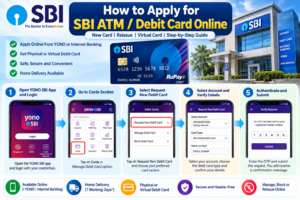
The instructions are based on SBI’s published information available on 14 October 2026. Menu names and available services may change as the bank updates its digital channels. If the options in your app differ, use the official SBI website or contact centre rather than following instructions from an unverified website.
Quick Overview: Change SBI ATM PIN Online
| Detail | Information |
|---|---|
| Main methods | YONO SBI, SBI Internet Banking and SBI ATM |
| PIN length | Four digits, as specified in SBI’s PIN-generation instructions |
| What you need | Eligible SBI debit card, access to the selected channel and registered mobile number when OTP verification is required |
| Documents | Usually no new paper documents for self-service PIN generation |
| Charges | Check the applicable SBI tariff; do not assume every PIN service is free |
| Branch visit | May be needed if digital verification fails or the card/account has a restriction |
Important Links for SBI ATM PIN Generation
| Purpose | Official resource |
|---|---|
| SBI Internet Banking information | Visit SBI Internet Banking page |
| SBI YONO debit card management | Manage ATM card on YONO |
| SBI ATM services | View ATM services |
| SBI customer care | Check contact centre instructions |
| FinBankingTech guides | Visit FinBankingTech.com |
What Is an SBI ATM PIN?
An SBI ATM PIN is the four-digit personal identification number associated with your debit card. It is used to authenticate certain ATM transactions and other card transactions where a PIN is required. Keep it private and never share it with another person, even someone claiming to be a bank employee.
PIN generation means setting a PIN for a new card or creating a replacement PIN. PIN change means replacing an existing PIN. Card activation is a separate process that enables a newly issued card or its relevant transaction functions. Depending on the card and channel, you may need to complete more than one of these steps.
Before You Change Your SBI ATM PIN Online
Check these points before starting. They can prevent failed requests and unnecessary visits to the branch.
- Keep your SBI debit card and the account details associated with it available.
- Make sure you can access your YONO SBI account or SBI Internet Banking, depending on the method you choose.
- Keep your registered mobile phone switched on if the process requires an OTP.
- Use only the official SBI app or type the bank’s official Internet Banking address yourself.
- Choose a PIN that is difficult for others to guess. Avoid your date of birth, repeated digits and simple sequences.
- Never disclose your existing PIN, new PIN, OTP, CVV or Internet Banking password to anyone.
Method 1: How to Change SBI ATM PIN Using YONO SBI
SBI’s official YONO debit card guidance confirms that customers can use the app to set or reset an ATM PIN. The exact screen layout can vary with app updates, so follow the current options shown in your own authenticated session.
Step-by-step process using YONO
- Open the official YONO SBI app. Install or update the app through the official app store and sign in using your permitted login method.
- Open the Cards section. Depending on the current app layout, go to Banking and then Cards or Debit Card.
- Select your SBI debit card. If more than one card is listed, carefully identify the card whose PIN you want to change.
- Choose Set/Reset PIN. SBI’s published YONO instructions describe this option under the card’s security controls.
- Enter a new four-digit PIN. Choose a PIN that is not easy to guess. Enter it again if the app requests confirmation.
- Complete verification. Follow the OTP or other authentication instructions displayed by SBI. Never share the OTP with another person.
- Submit and check the result. Wait for a success message or other confirmation before leaving the screen. If the request fails, do not assume the PIN has changed.
Method 2: SBI Debit Card PIN Generation Through Internet Banking
If you use SBI Internet Banking, the bank publishes an online PIN-generation route through the e-Services section. This method can be useful when you prefer a computer or already manage your account through OnlineSBI.
Steps to generate or change the SBI ATM PIN online
- Open SBI’s official Internet Banking portal. Check the address carefully before entering credentials.
- Sign in using your own Internet Banking username and password.
- Open e-Services and look for Debit Card Services or the equivalent ATM/debit card menu displayed in your account.
- Select ATM PIN Generation.
- Complete the authentication method offered by SBI, such as OTP or profile-password verification, as applicable to your account.
- Select the account linked to the debit card and then select the correct card.
- Enter the four-digit PIN you want to use, confirm it and submit the request.
- Wait for the confirmation message. If SBI displays an error or asks you to retry, follow the on-screen instructions instead of repeatedly submitting the request.
Important: SBI’s published instructions describe the PIN-generation route, but the options available to an individual customer can depend on the account, card and current portal configuration. If the menu is missing, check the official YONO or ATM method instead.
Method 3: Change or Generate SBI ATM PIN at an SBI ATM
If you cannot use the app or Internet Banking, an SBI ATM is another option. SBI’s ATM services information lists both Green PIN generation and PIN change services.
Steps at an SBI ATM
- Visit an SBI ATM and keep your debit card with you.
- Insert the card and follow the instructions on the ATM screen.
- Select the PIN generation or Green PIN option if you are setting a PIN for the first time. If you already have a PIN and want to replace it, select the PIN change option.
- Complete the verification steps requested by the ATM. Depending on the route, you may need an OTP or another bank-provided authentication step.
- Enter and confirm your new PIN when prompted.
- Wait for the on-screen confirmation and safely end the session.
ATM screen labels and the order of steps can vary. Follow the instructions shown on the machine and never accept help from a stranger who asks to handle your card or learn your PIN.
Can You Generate an SBI Green PIN by Phone?
SBI’s official customer-care page describes a Green PIN process through its contact centre. The published instructions direct customers to call 1800 1234, choose the debit card and cheque-book service, and select the PIN-generation option. The IVR asks for specified account/card details and year of birth, after which a one-time PIN is sent to the registered mobile number for use at an SBI ATM.
Because IVR menus and service availability can change, check the current instructions on the official SBI contact centre page before calling. Use only the number published by SBI, and never disclose an OTP or PIN to a person who calls you unexpectedly.
SBI ATM PIN Change vs PIN Generation vs Card Activation
| Service | When you need it | What it does |
|---|---|---|
| PIN generation | A new card needs a PIN | Creates a PIN for card use |
| PIN change/reset | You know the old PIN and want to change it, or need to reset a forgotten PIN through an available channel | Replaces the PIN |
| Card activation | A newly issued card or transaction function is not enabled | Enables the card or relevant usage, subject to SBI’s controls |
| Card blocking | Your card is lost, stolen or suspected of misuse | Stops further use of the blocked card |
Changing the PIN does not automatically enable every transaction channel. For example, online, international or contactless transactions may have separate controls. Review SBI’s official debit card management guidance if a card works at an ATM but a different type of transaction is declined.
Eligibility and Requirements
There is no separate paper application described for routine self-service PIN changes through the digital channels listed above. You should, however, have an eligible SBI debit card and access to the channel you intend to use.
- An SBI debit card linked to the relevant account.
- Access to YONO SBI, Internet Banking or an SBI ATM, depending on your chosen method.
- Access to the registered mobile number if OTP verification is required.
- Successful identity/authentication checks requested by the bank.
If the card is blocked, expired, not yet available for use, or linked to an account with a restriction, PIN generation alone may not resolve the issue. Contact SBI through an official channel if the system will not proceed.
SBI ATM PIN Generation: Common Problems and Solutions
1. OTP is not received
Check that your registered mobile phone has network coverage and can receive messages. Wait briefly and use the resend option only if it appears. If the number registered with SBI is no longer active, update it through the bank’s prescribed process before trying again.
2. The debit card is not displayed in YONO
Confirm that you have signed in to the correct SBI relationship and selected the relevant card section. Update the app from its official store. If the card remains missing, use SBI Internet Banking or contact SBI to check whether the card is eligible and linked correctly.
3. ATM PIN Generation is not available in Internet Banking
Check the current menu and your account permissions. SBI may display different options according to the account, card or portal version. Try the official YONO or ATM route if available, or contact the bank for guidance.
4. The new PIN is rejected
Follow the exact format shown on the screen and enter a four-digit PIN where requested. Avoid repeated guesses or submissions. If the service reports a temporary restriction or repeated failures, stop and contact SBI rather than continuing to retry.
5. The PIN was changed, but the card still does not work
Check whether the PIN change was confirmed and whether the card is active. Also check transaction-channel settings and limits. If the ATM retains the card, the card is blocked, or an unauthorised transaction is suspected, contact SBI immediately using its official support channels.
6. You forgot your Internet Banking password
You must regain access through SBI’s official login recovery process or use another available PIN service. Do not use third-party websites claiming they can change your ATM PIN without bank verification. See our related guide: How to Reset SBI Net Banking Password Online.
SBI ATM PIN Safety: Mistakes to Avoid
- Never share your PIN or OTP. SBI staff do not need you to disclose your secret PIN to complete a routine PIN change.
- Do not use predictable PINs. Avoid birthdays, phone-number fragments, repeated digits and obvious sequences.
- Do not follow links from unexpected messages. Open SBI’s official app or type the official website address yourself.
- Cover the keypad at an ATM. Check the machine and surrounding area before entering credentials.
- Do not save the PIN in an unprotected note. Memorise it and keep it separate from your card.
- Block a lost card promptly. Changing the PIN is not a substitute for blocking a missing card.
- Check for confirmation. Do not assume a request succeeded merely because you clicked Submit.
Practical Example: Which Method Should You Choose?
Illustrative example only; this is not a real customer testimonial.
Suppose a customer receives a replacement SBI debit card and wants to set a PIN. If the customer can log in to YONO and the card appears in the app, the Set/Reset PIN route may be the most convenient. If the customer prefers a computer and has Internet Banking access, the ATM PIN Generation menu may be suitable. If neither digital option is accessible, the customer can check SBI’s official ATM or contact-centre instructions.
The important point is to choose a method that is available for your own card and complete the verification steps requested by SBI. There is no need to share your PIN with another person or pay an unofficial agent to perform this task.
Frequently Asked Questions
1. Can I change my SBI ATM PIN online?
Yes. SBI documents PIN setting and resetting through YONO SBI and ATM PIN generation through Internet Banking. Availability depends on the card and account.
2. How do I change my SBI ATM PIN using YONO?
Sign in to the official YONO SBI app, open the Cards or Debit Card section, select your card, choose Set/Reset PIN, enter and confirm the new PIN, and complete the requested authentication.
3. How can I generate an SBI debit card PIN online?
Sign in to SBI Internet Banking, open e-Services and Debit Card Services, select ATM PIN Generation, choose the linked account and card, and follow the authentication and submission instructions.
4. Is SBI debit card PIN generation available through YONO?
Yes. SBI’s published YONO guidance includes a Set/Reset PIN option for debit cards. The menu may vary with app updates.
5. Can I change my SBI ATM PIN without visiting a branch?
Often, yes, if you can complete PIN verification through YONO, Internet Banking or an SBI ATM. A branch may be required when the bank cannot verify your details or the card/account has a restriction.
6. What is an SBI Green PIN?
Green PIN is SBI’s PIN-generation process. SBI describes options involving digital banking, ATMs and its contact-centre process.
7. Can I generate an SBI ATM PIN at an ATM?
Yes. SBI ATM services list both Green PIN generation and PIN change. Follow the current screen instructions and complete the required verification.
8. What should I do if I forget my SBI ATM PIN?
Use the Set/Reset PIN option in YONO or the ATM PIN Generation option in Internet Banking if available. An SBI ATM may also provide an applicable PIN service.
9. Do I need my registered mobile number?
You may need access to it because SBI can require OTP authentication. If your registered number is inactive or incorrect, follow SBI’s official process to update it.
10. Can I change my SBI ATM PIN without an OTP?
Do not assume OTP is always optional. SBI may offer an alternative authentication method, such as profile-password verification, depending on the service and account. Use only the options actually presented by SBI.
11. How many digits are in an SBI ATM PIN?
SBI’s published PIN-generation instructions specify a four-digit PIN.
12. Is SBI ATM PIN change free?
Charges can depend on the particular service and customer category. Check SBI’s current tariff or confirm with the bank before assuming that every PIN-generation method is free.
13. Can I use the same PIN after receiving a replacement card?
Do not assume the old PIN will work. Follow the PIN-generation instructions for the replacement card and use the confirmation provided by SBI.
14. Does generating a PIN automatically activate my SBI debit card?
Not necessarily. PIN generation and card activation are different processes. Check the card’s status and complete any separate activation or transaction-channel steps SBI requires.
15. Why is my SBI debit card not showing in YONO?
Possible reasons include selecting the wrong account, a card-linking issue, or a card that is not eligible for the service. Check the account and contact SBI if the card remains missing.
16. What should I do if the OTP does not arrive?
Check mobile coverage and the registered number, wait briefly, and retry only as instructed. If the issue continues, use SBI’s official contact centre.
17. Can I change my SBI ATM PIN from another bank’s ATM?
Availability can vary by ATM network and card service. For the most reliable instructions, use an SBI ATM or another official method listed by SBI.
18. Can I change my PIN if my debit card is blocked?
A blocked card may not be eligible for PIN change. Contact SBI to establish why it is blocked and whether it must be unblocked or replaced.
19. What should I do if I receive an unexpected OTP for PIN generation?
Do not share the OTP or approve a request you did not initiate. Check your account through official SBI channels and report suspected unauthorised activity promptly.
20. Where can I find official help for SBI debit card PIN issues?
Use the SBI Contact Centre page or the bank’s official Manage ATM Card guidance.
Final Words
Changing your SBI ATM PIN is usually straightforward when you use an official channel and follow the authentication steps carefully. For a mobile-based option, check YONO SBI’s Set/Reset PIN service. For Internet Banking, look under e-Services and Debit Card Services. If you prefer an ATM, follow SBI’s Green PIN or PIN change instructions.
Remember that PIN generation, card activation and transaction-channel settings are separate functions. If the process fails, stop repeated attempts and contact SBI through its verified support page. Keep your PIN, OTP, CVV and login credentials private at all times.
About FinBankingTech: FinBankingTech.com is an independent educational website. It is not affiliated with, operated by, or an official support channel of State Bank of India. Always verify banking instructions on SBI’s official website before acting.Join our Telegram channel | Contact us on WhatsApp | Visit FinBankingTech.com
Official References
- SBI: All About SBI Debit Card on YONO — YONO PIN setting/resetting and card management.
- SBI: Manage ATM Card — card controls, PIN and activation services.
- SBI: Internet Banking — official Internet Banking information.
- SBI: ATM Services — Green PIN and PIN change information.
- SBI: Contact Centre — official contact-centre and Green PIN instructions.
- SBI: Debit Card Services and Facilities (PDF) — published Internet Banking and YONO PIN-generation steps.
Editorial review date: 14 October 2026. Menu labels, authentication options and service charges may change. Check SBI’s current official instructions before publishing any time-sensitive claim or acting on a banking request.